PDF ORGANIZATION TOOL
Alternate & Mix
Combine pages from two PDF files by alternating their pages.
First PDF
No file selected.
Second PDF
No file selected.
PDF ORGANIZATION TOOL
Combine pages from two PDF files by alternating their pages.
No file selected.
No file selected.
Combine pages from two PDF documents by alternating their pages. Upload your first and second PDF files, mix their pages, and download the resulting document in a few simple steps.
Open the Alternate & Mix tool on PDF Wizard Tools. This tool is designed to combine pages from two PDF documents by alternating between them, helping you organize related documents into a single file.
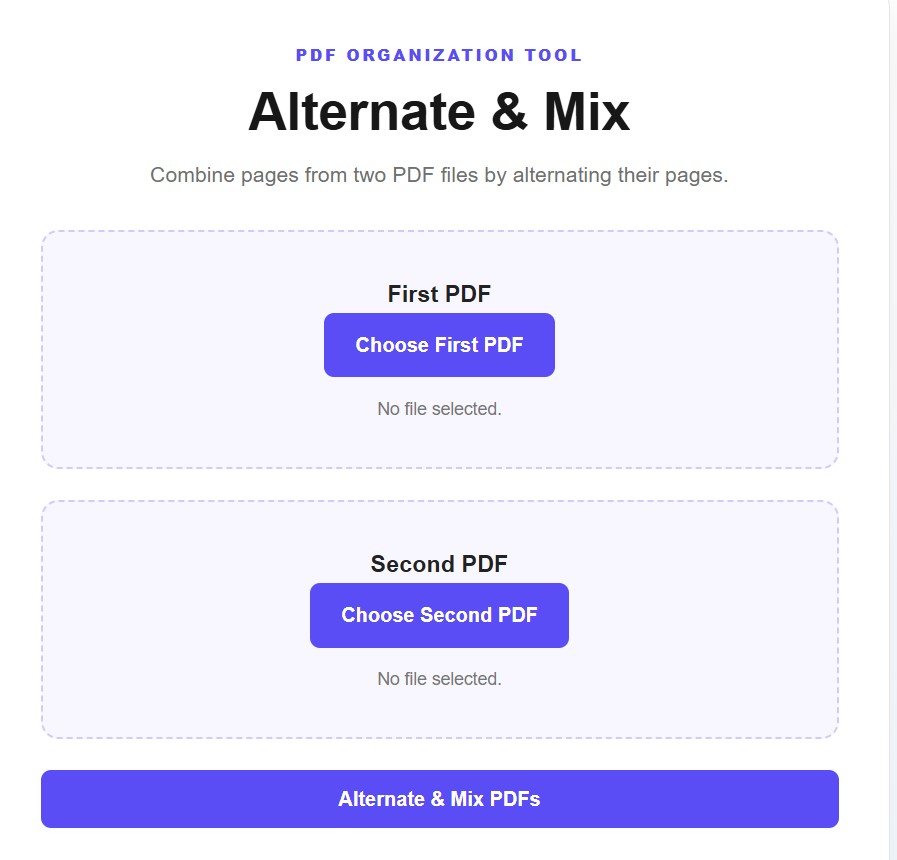
Click the Choose First PDF button and select the first PDF document from your device. This file will provide the pages that appear first in the alternating sequence.
Check that you have selected the correct document before moving to the next step.
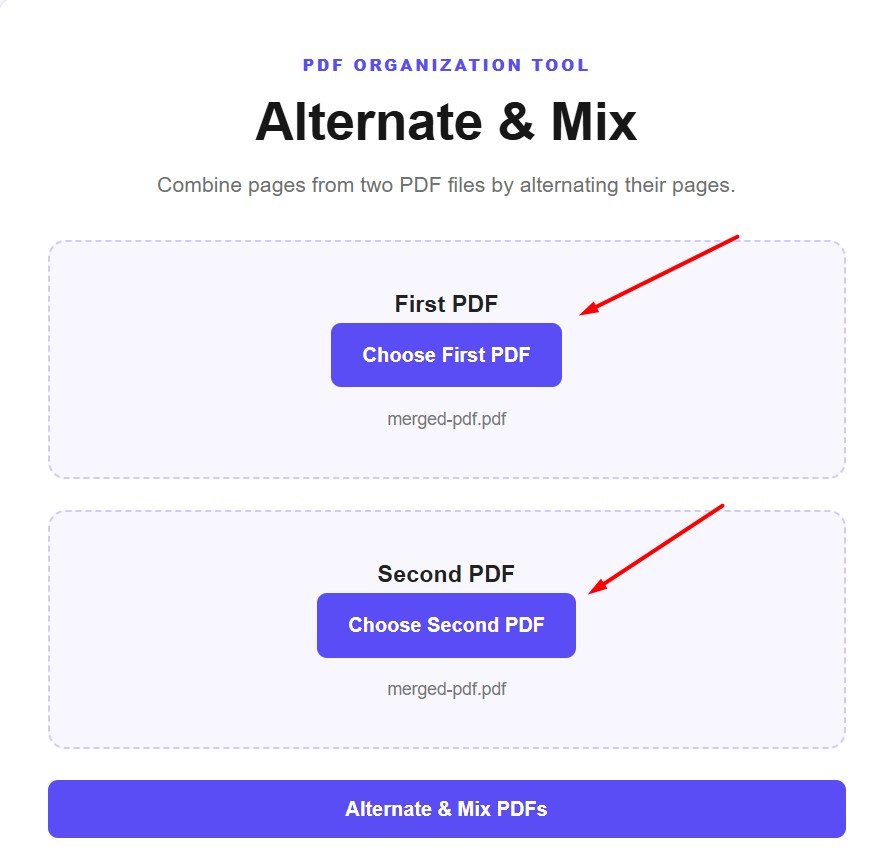
Click the Choose Second PDF button and select the second PDF document you want to combine with the first one. Both documents should be uploaded before you start mixing their pages.
For example, you can use two sets of scanned documents, related reports, or separate files that need to be combined in alternating order.
Review the file names displayed beneath the upload buttons. Make sure the correct document is selected in each section. If you choose the wrong file, select the appropriate PDF again before continuing.
Double-check your selections because the two documents will be combined according to the tool's alternating-page process.
Once both PDF files are selected, click the Alternate & Mix PDFs button. The tool will process the documents and combine their pages in an alternating sequence.
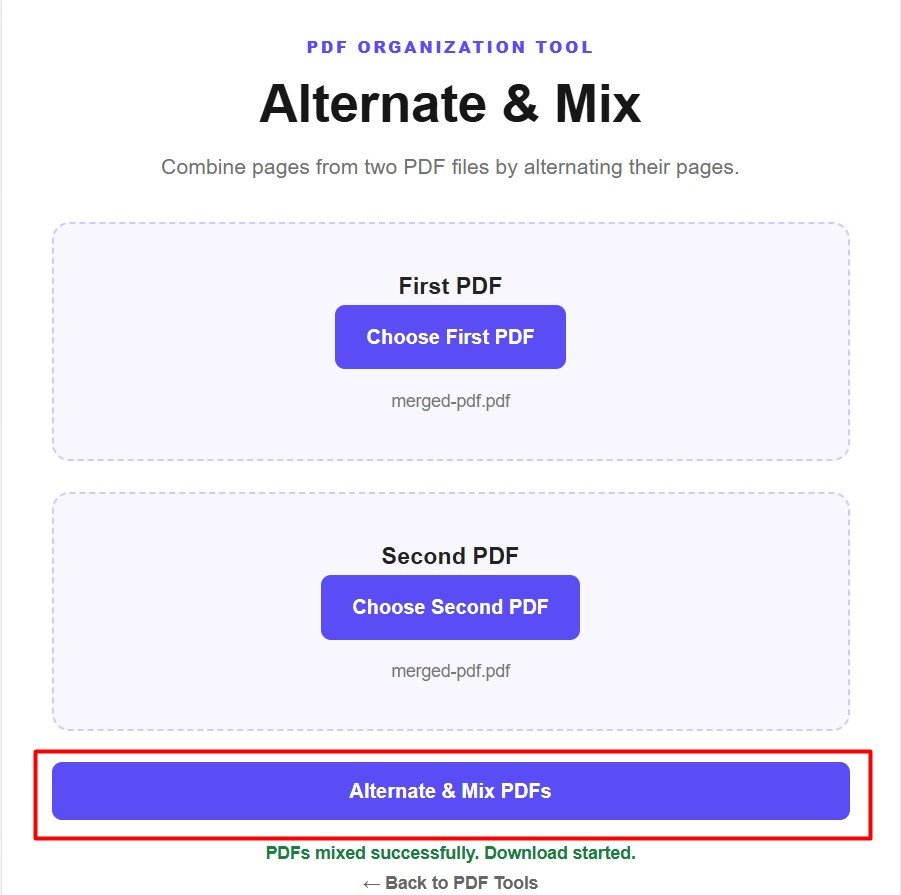
After the process finishes, the resulting PDF should be downloaded to your device if the tool completes the operation successfully. Open the file to check that the pages from both documents have been combined as expected.
Sometimes, two PDF documents contain pages that need to be combined in a repeating sequence rather than placing one complete document after the other. The Alternate & Mix tool helps automate this process instead of requiring you to rearrange every page manually.
The tool takes pages from your first and second PDF files and alternates between the two documents to create a combined PDF. For example, if both documents contain multiple pages, the output can follow a sequence like the one below.
The exact output depends on the tool's implementation and the number of pages in each source document. Check the resulting PDF after downloading it.
Once you have combined your documents, you may need to perform additional tasks. Use the Merge PDF tool if you want to join complete PDF files into one document without alternating their pages.
If you only need particular pages from a document, use our Split PDF tool to extract selected pages into a separate PDF.
If the final document is too large to upload or send, use our Compress PDF tool to reduce its file size.
Combine pages from two PDF documents in an alternating sequence. Select both files, start the process, and download your combined PDF.
Alternate & Mix PDFs