PDF WIZARD TOOL
Crop PDF
Crop the margins of your PDF pages.
Select a PDF file to crop.
PDF WIZARD TOOL
Crop the margins of your PDF pages.
Select a PDF file to crop.
Adjust the visible page area of your PDF with PDF Wizard Tools. Crop unwanted margins and focus on the content you need.
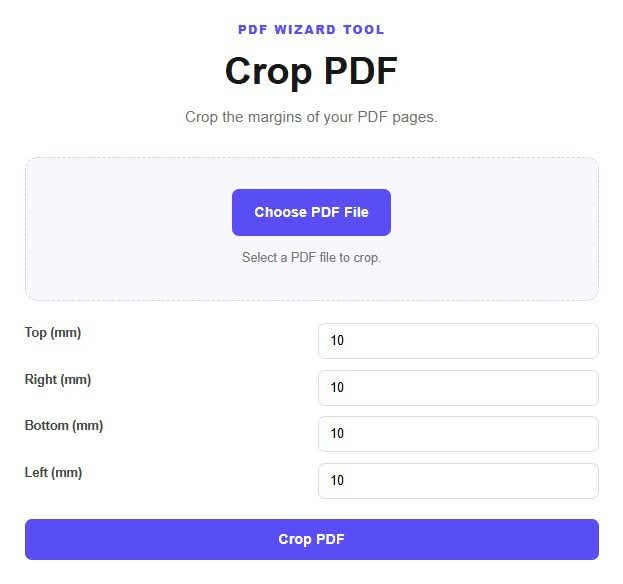
Open the Crop PDF tool on PDF Wizard Tools. Use the available crop controls to adjust the visible area of your PDF pages.
Cropping may be useful for documents with excessive margins or pages where you want to focus on a particular area.
Select the PDF you want to crop and wait for it to load. Check that you have chosen the correct document.
Keep a backup of the original PDF before applying any changes to its page layout.
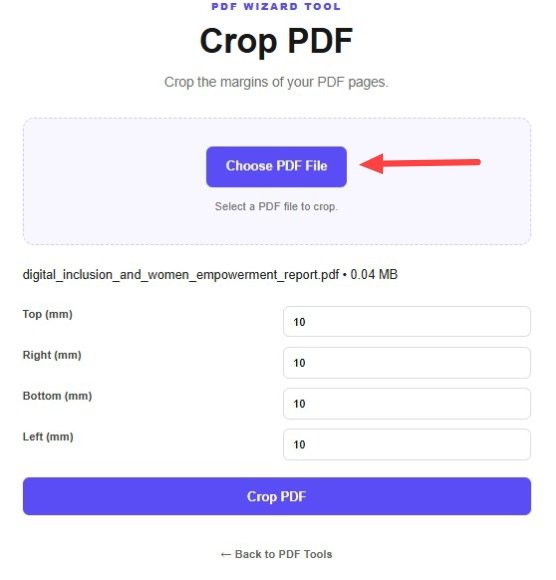
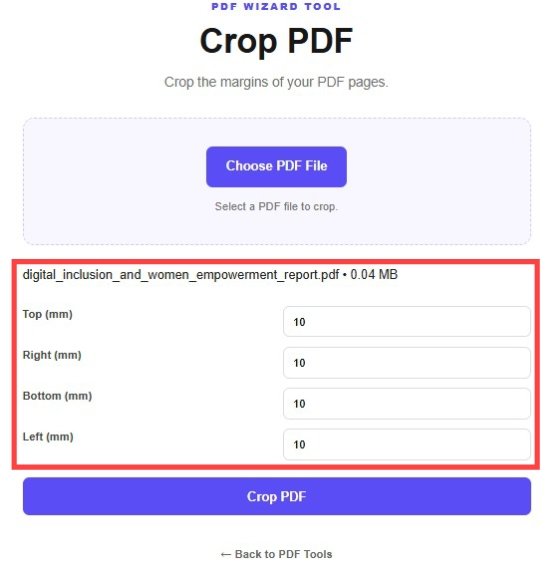
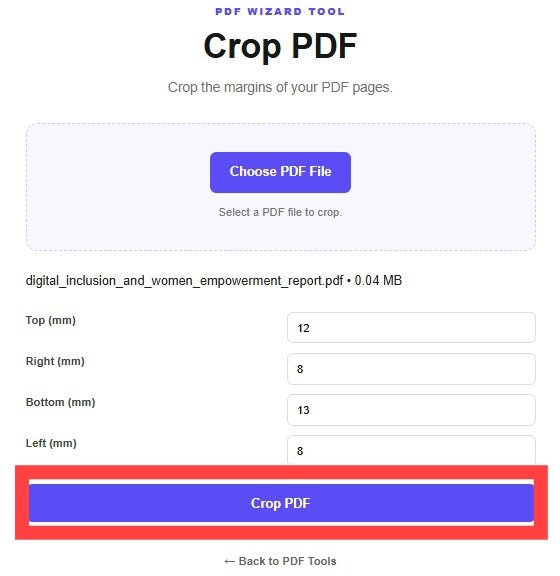
Use the crop box, margin controls, or other available settings to select the page area you want to keep visible.
Carefully check that important text, tables, images, and other required content are inside the selected area.
Review your selection and click the crop or process button provided by the tool.
Wait for the updated PDF to be generated before downloading the result.
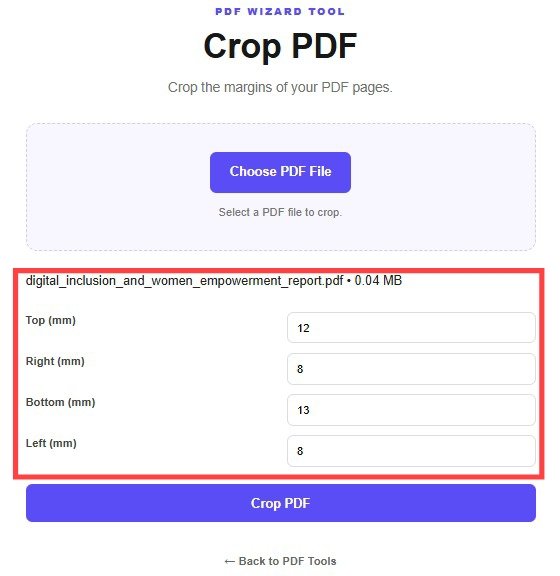
Download the cropped document using the available download option.
Open the final PDF and check that all important content remains visible and the page layout looks correct.
Cropping can help adjust the visible page area and make documents easier to view or prepare for a particular layout.
Important: Cropping does not necessarily securely erase hidden information. Do not rely on cropping alone to remove confidential content.
A PDF cropping tool applies the selected page-area settings. The result depends on the crop controls and processing method supported by the tool.
Review the output carefully to ensure that no important content has been cut off.
Correct page orientation with Rotate PDF.
Change page dimensions with Resize PDF.
Reduce the document's data size with Compress PDF.
Cropping adjusts the visible page area according to the settings supported by the tool.
This depends on whether your tool supports applying crop settings to multiple pages or the entire document.
Not necessarily. Use Compress PDF if you want to reduce the amount of data in the file.
Not always. Cropping may change the visible page area without securely removing underlying content. Use an appropriate redaction method for sensitive information.
Yes. Use Rotate PDF if you also need to correct page orientation.
It can if the crop area is too small. Preview the result and make sure all required content remains visible.
Adjust page boundaries and focus on the content that matters with PDF Wizard Tools.
Back to Crop PDF Tool