PDF WIZARD TOOL
Reorder PDF Pages
Change the order of pages in your PDF document.
Select a PDF and enter the new page order.
PDF WIZARD TOOL
Change the order of pages in your PDF document.
Select a PDF and enter the new page order.
Arrange PDF pages in the correct sequence with PDF Wizard Tools. Organize reports, study notes, and documents without recreating the entire PDF.
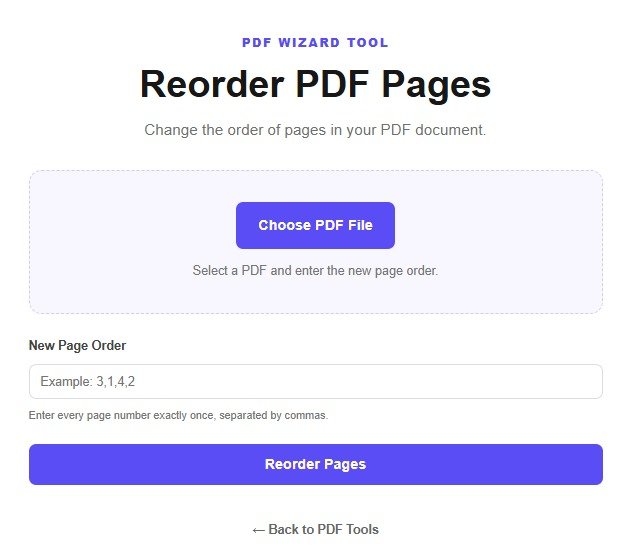
Open the Reorder PDF Pages tool on PDF Wizard Tools. It helps you change the sequence of pages in a document using the controls available in the tool.
This can be useful when pages are out of order or when you want to organize a document before sharing or printing.
Click the file upload button and select the PDF whose page sequence you want to change.
Wait for the file to load and keep a backup of the original document before making changes.
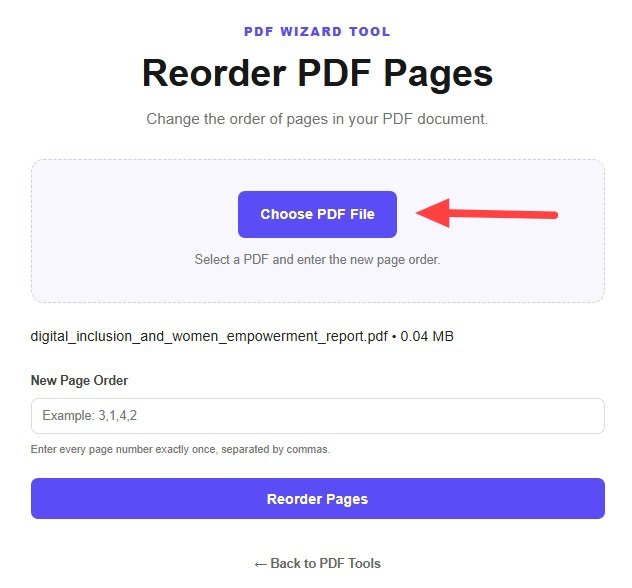
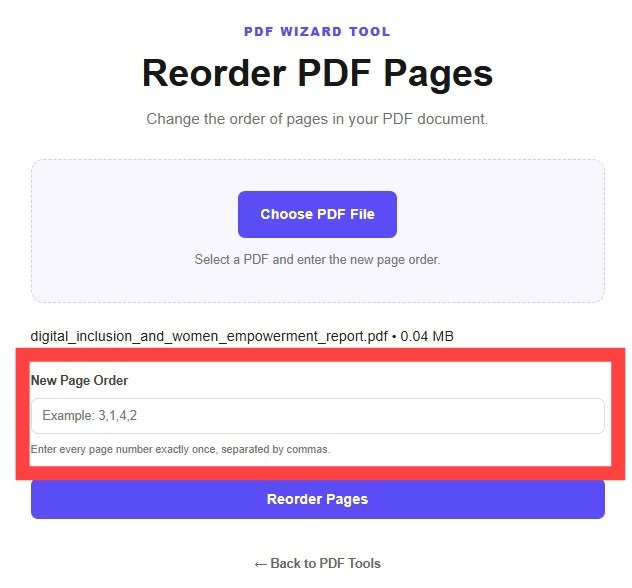
Review the page previews and use the drag-and-drop, arrow, or ordering controls provided by the tool to arrange the pages in your preferred sequence.
Check the page numbers and position each page carefully before applying the changes.
Review the new arrangement and click the process or save button available in the tool.
Wait for the updated PDF to be generated before downloading the result.
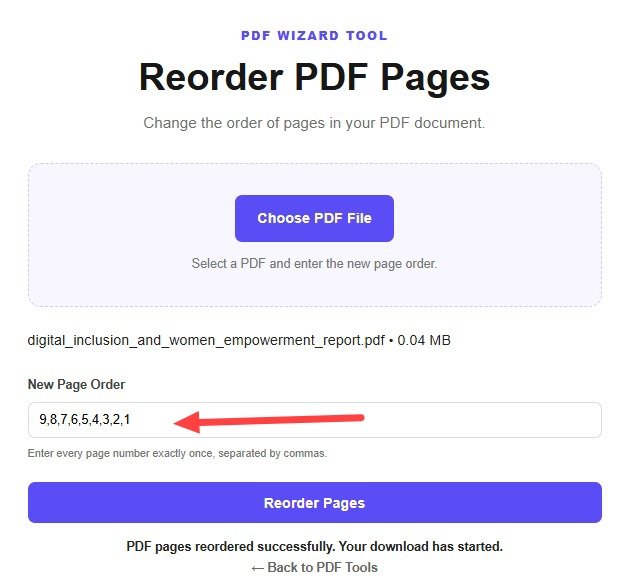
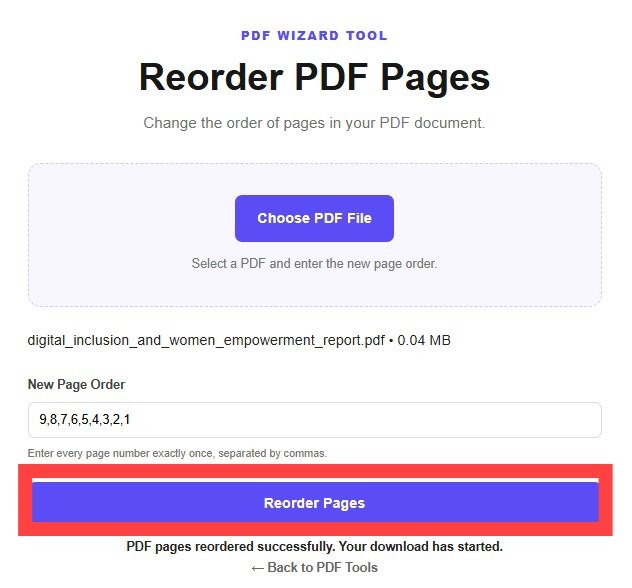
Download the processed PDF using the available download option.
Open the document and check the first, middle, and last pages to confirm that the sequence is correct.
Changing page order helps make documents more organized and easier to read, review, print, or share.
The tool changes the sequence of pages according to your arrangement. It is intended for page organization rather than editing the text or images inside each page.
The final order depends on the arrangement you select before processing the document.
Remove unwanted pages using Delete PDF Pages.
Extract selected pages using Extract PDF Pages.
Correct page orientation with Rotate PDF.
Use the page ordering controls to place the page first, if that action is supported by the tool.
Reordering is intended to change page sequence, not the content inside each page.
Arrange the required pages using the page controls provided by your version of the tool.
Yes. Use Delete PDF Pages to remove unwanted pages.
Keep a backup of your original file until you have checked the downloaded result.
Use Rotate PDF to change the orientation of pages.
Put your document in the correct sequence with PDF Wizard Tools.
Back to Reorder PDF Pages Tool