PDF WIZARD TOOL
Delete PDF Pages
Remove selected pages from your PDF document.
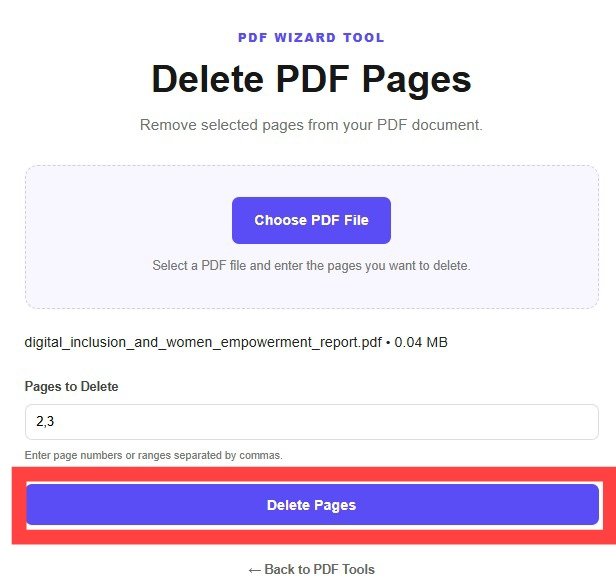
Select a PDF file and enter the pages you want to delete.
PDF WIZARD TOOL
Remove selected pages from your PDF document.
Select a PDF file and enter the pages you want to delete.
Remove unwanted pages from a PDF document with PDF Wizard Tools. Keep the pages you need and prepare a cleaner document for sharing.
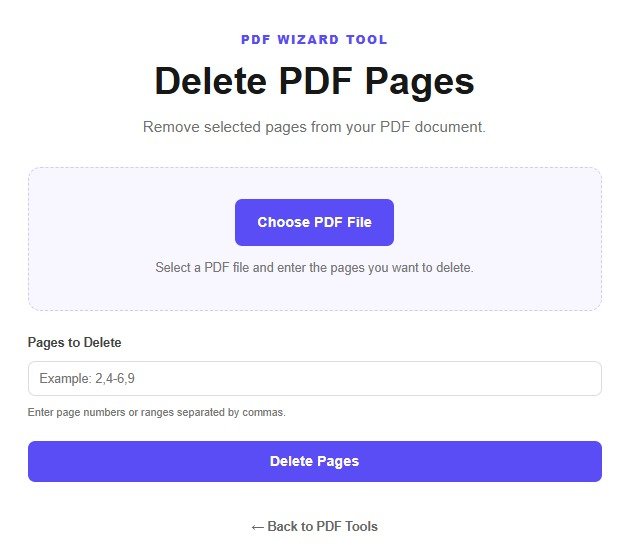
Open the Delete PDF Pages tool on PDF Wizard Tools. Use it to remove pages you no longer need from a PDF.
This can be useful for removing blank pages, duplicate sections, or unnecessary content from a document.
Click the file upload button and select the PDF containing the pages you want to remove. Wait for the document to load.
Keep a copy of the original PDF so you can recover any pages you might need later.
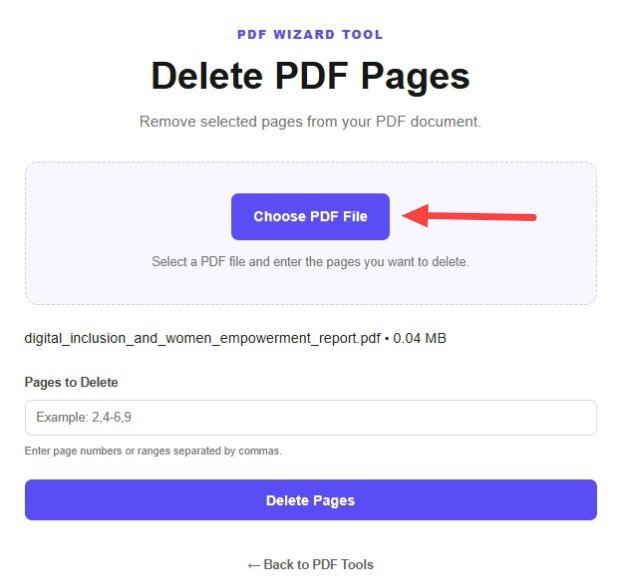
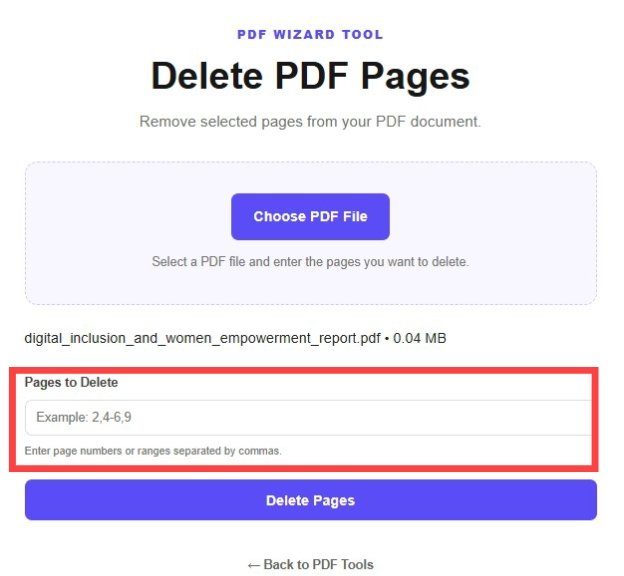
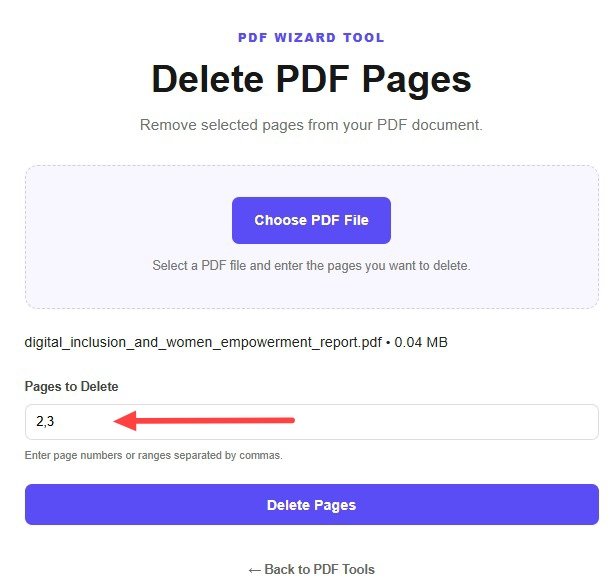
Use the available page selection controls to choose the pages you want to remove. Carefully check the page numbers before continuing.
Review your selection to make sure that important text, tables, images, or other required information will remain in the document.
Confirm your selection and click the delete or process button provided by the tool.
Wait for processing to finish before downloading the updated PDF document.
Download the processed document using the available download option.
Open the PDF and verify that the unwanted pages are gone and all remaining pages are present and readable.
Removing unnecessary pages can make a document more organized and easier to review before sharing, printing, or storing it.
The tool uses your page selection to create an updated PDF without the selected pages. Check the page numbering and review the final file before using it.
This is a general illustration. The resulting page count depends on the pages selected for removal.
Extract selected pages with Extract PDF Pages.
Arrange the remaining pages with Reorder PDF Pages.
Combine documents using Merge PDF.
Use multiple-page selection if that option is available in your version of the tool.
Keep your original PDF as a backup. You can use it to create a new copy containing the pages you need.
Removing pages may reduce the output file size, but the amount depends on the content removed. For compression, use Compress PDF.
Use Extract PDF Pages to save selected pages separately.
The purpose is to remove selected pages. Always review the output file to ensure that the remaining pages are correct.
Yes. Use Reorder PDF Pages if you want to change the page sequence.
Keep the pages you need and organize your document with PDF Wizard Tools.
Back to Delete PDF Pages Tool