PDF WIZARD TOOL
Extract PDF Pages
Extract selected pages from your PDF into a new document.
Select a PDF file and choose the pages you want to extract.
PDF WIZARD TOOL
Extract selected pages from your PDF into a new document.
Select a PDF file and choose the pages you want to extract.
Save selected pages from a PDF as a separate document with PDF Wizard Tools. Choose the pages you need and keep your documents organized.
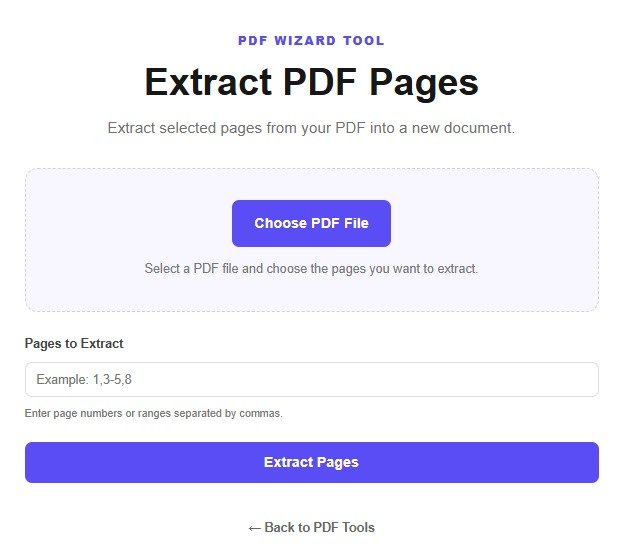
Open the Extract PDF Pages tool on PDF Wizard Tools. Use it to create a separate PDF containing the pages you select.
It can be useful when you need to share a particular chapter, report section, form, or selected pages from a larger document.
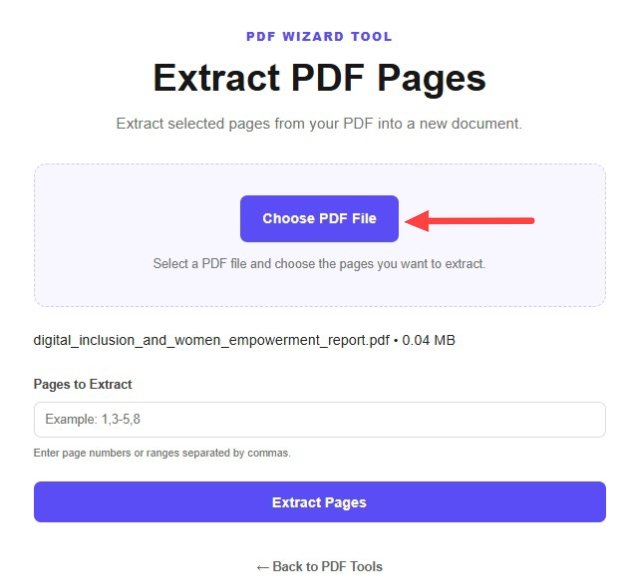
Click the upload button and choose the PDF from your device. Wait for the document and its available page selection controls to load.
Check the document before proceeding and keep a backup of the original file.
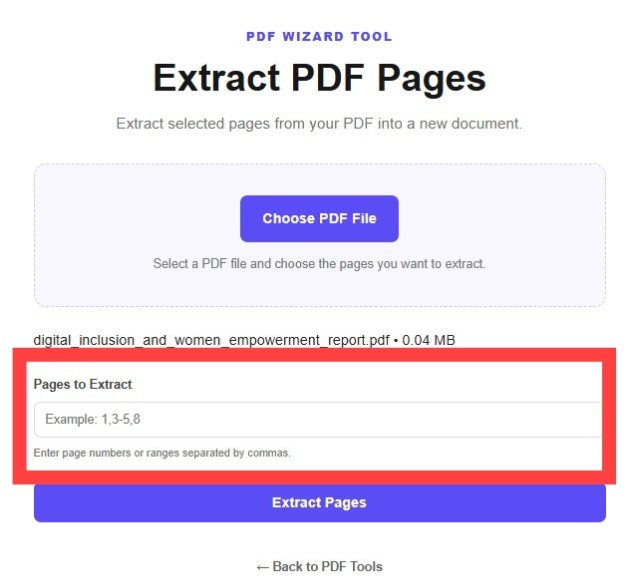
Select the individual pages or page ranges you want to save, using the options supported by the tool.
Carefully review the page numbers. Make sure that all required pages are included in your selection.
Confirm your selection and click the extract or process button provided by the tool.
Wait for processing to finish before downloading the resulting PDF.
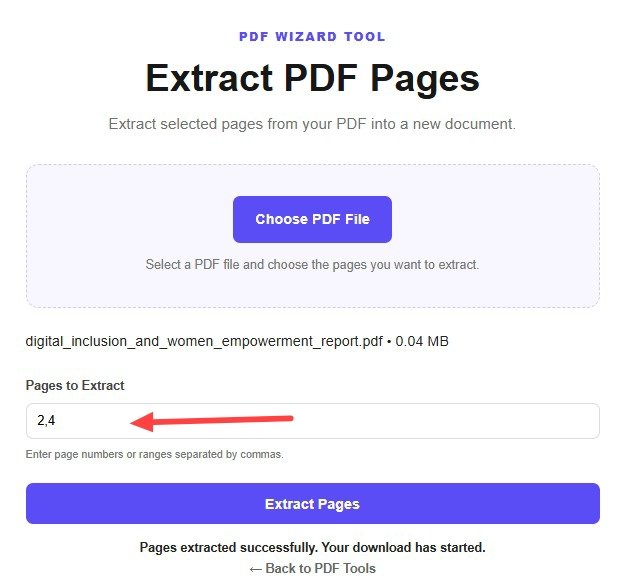
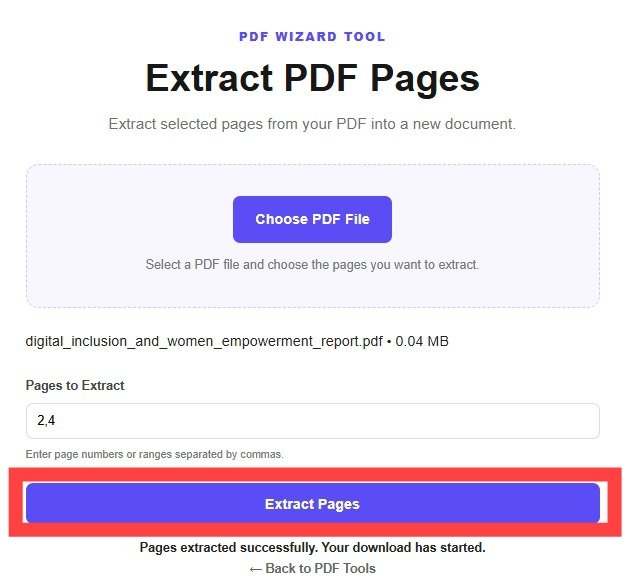
Download the newly created PDF using the available download option.
Open the file and verify that it contains the correct pages in the expected order.
Extracting pages helps you create a smaller, focused document without needing to send the entire original PDF.
The tool uses your page selection to create a separate document containing the chosen pages.
The pages included in the new document depend on your selection and the extraction options available.
Combine extracted files with Merge PDF .
Remove unnecessary pages using Delete PDF Pages .
Arrange pages using Reorder PDF Pages .
It means saving selected pages from a PDF into a separate document using the extraction options available in the tool.
Yes, if the tool supports selecting an individual page.
Use the multiple-page or page-range selection options available in your version of the tool.
Keep the original document as a backup until you have verified the extracted file.
Extraction saves selected pages. Splitting divides a document according to the split options supported by the tool.
Yes. Use our Merge PDF tool to combine PDF documents.
Create a separate PDF with your selected pages using PDF Wizard Tools.
Back to Extract PDF Pages Tool