PDF ORGANIZATION TOOL
Organize PDF
Rearrange your PDF pages into the order you want.
Select a PDF file to organize
PDF ORGANIZATION TOOL
Rearrange your PDF pages into the order you want.
Select a PDF file to organize
Rearrange your PDF pages into the order you want. Upload your PDF file, review your pages, organize your document, and download the resulting PDF in a few simple steps.
Rearrange your PDF pages into the order you want.
Open the Organize PDF tool on PDF Wizard Tools. This tool helps you manage the order of pages in a PDF document using the available page-management controls.
You can use it to organize college assignments, office reports, scanned documents, study notes, and other multi-page PDF files.
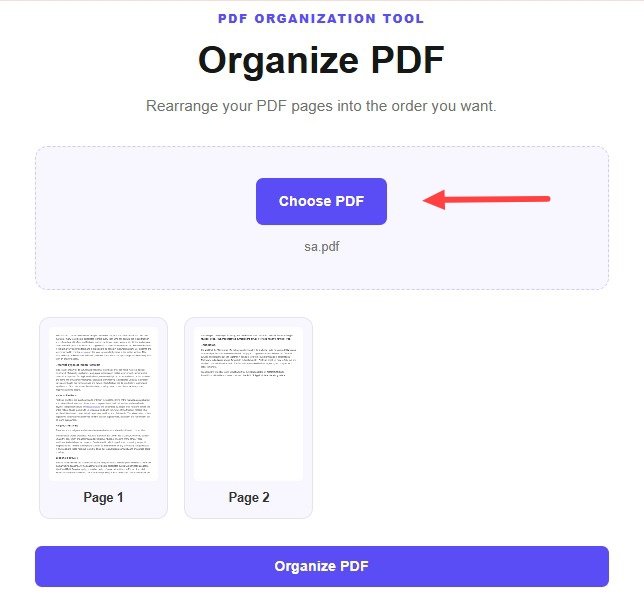
Click the Choose PDF button and select the PDF document you want to organize from your computer or supported device.
Wait for the document to load. Check the selected file name and make sure you have uploaded the correct PDF before continuing to the next step.
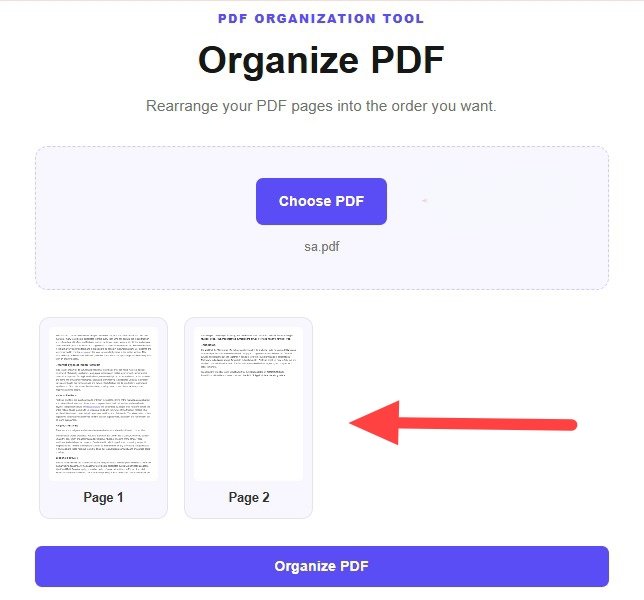
After uploading your document, review the page previews displayed by the Organize PDF tool. Check the existing sequence and identify any pages that need to be moved.
Review the page numbers and content carefully so that your document follows the correct reading order.
Use the page-reordering controls provided by the tool, if available, to arrange the pages in your preferred sequence. Keep related sections together to make the document easier to read.
For example, you may want to place the cover page first, followed by the contents page and then the main chapters of your assignment.
Example only. The final order depends on the changes supported by your tool and the adjustments you make.
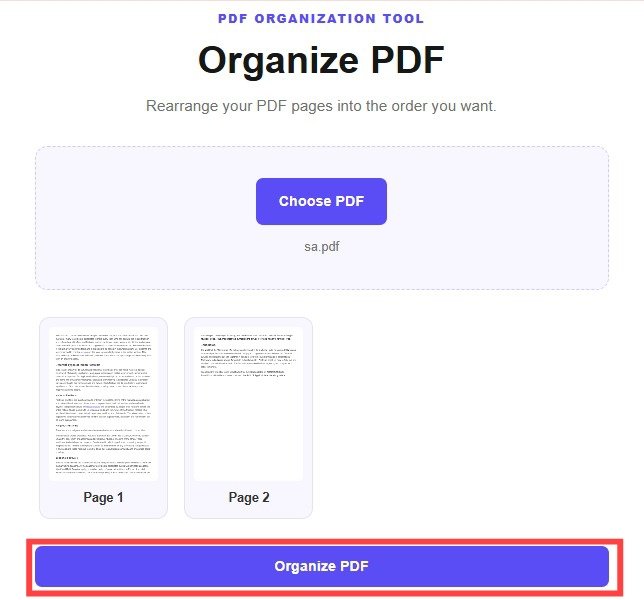
Once you have reviewed your document and completed the available page adjustments, click the Organize PDF button.
Wait while the tool processes your PDF. Processing time may vary depending on the file size and number of pages.
After the PDF has been processed successfully, use the download option provided by the tool to save the resulting document to your device.
Open the downloaded PDF and check that the pages appear in the intended order. Your document is now ready to use, print, share, or store.
Organized PDF document
Review and save your fileSometimes a PDF document contains pages that need to be rearranged into a better reading order. The Organize PDF tool helps you manage your documents without having to recreate the entire file from the beginning.
Upload your PDF and review the available page previews. Use the supported controls to arrange the pages, process the document, and download the resulting file.
This is an illustrative example of page reordering. The actual output depends on the adjustments supported by your Organize PDF tool.
Once your document is organized, you may need to perform additional PDF tasks. Use our Merge PDF tool to combine multiple PDF documents into one file.
If you need to separate a document into smaller files, try our Split PDF tool.
To remove unwanted pages, use Delete PDF Pages.
If the final document is too large, use Compress PDF to reduce its file size.
You can also use Rotate PDF to correct page orientation.
An Organize PDF tool helps you arrange PDF pages into a preferred sequence using its supported page-management controls.
Upload your PDF, review its page previews, make the available page adjustments, process the document, and download the resulting PDF.
Page rearrangement is possible when the tool provides page-reordering controls. Check the available options after uploading your document.
Yes. Organizing PDF pages can help you structure assignments, study notes, project reports, and other educational documents.
Yes. After downloading your organized document, visit our Compress PDF tool if you need to reduce the file size.
Once processing is complete, use the download option provided by the tool and save the resulting document.
Arrange your PDF pages, keep your documents organized, and prepare your files for sharing with PDF Wizard Tools.
Back to Organize PDF Tool