PDF ORGANIZATION TOOL
Split by Bookmarks
Split a PDF into separate files using its bookmarks.
Select a PDF containing bookmarks.
PDF ORGANIZATION TOOL
Split a PDF into separate files using its bookmarks.
Select a PDF containing bookmarks.
Split a PDF document into smaller files using its bookmarks. Separate chapters, sections, and bookmarked parts of a document with a simple step-by-step process using PDF Wizard Tools.
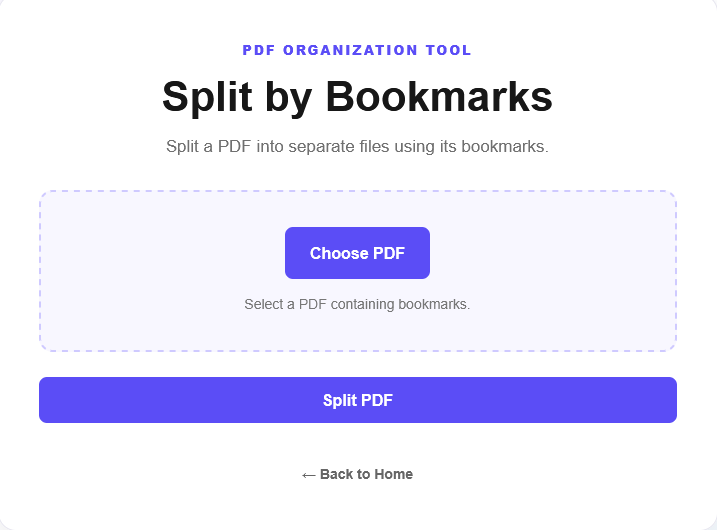
Open the Split by Bookmarks tool on PDF Wizard Tools. This tool is designed to divide a bookmarked PDF into separate documents based on its bookmark structure.
It can be useful when a large PDF contains multiple chapters, reports, sections, or other clearly marked parts that you want to save as individual PDF files.
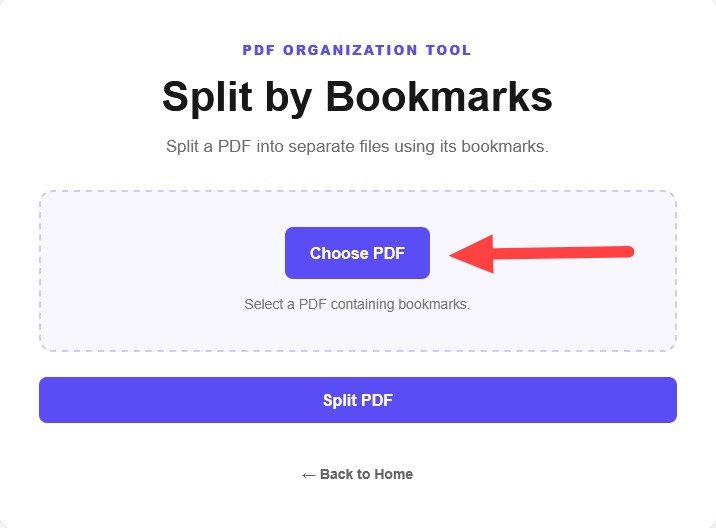
Click the Choose PDF or file upload button and select the PDF document you want to split from your device. Wait for the file to load before continuing.
Make sure you have selected the correct document. For the best results, use a PDF that contains bookmarks identifying the chapters or sections you want to separate.
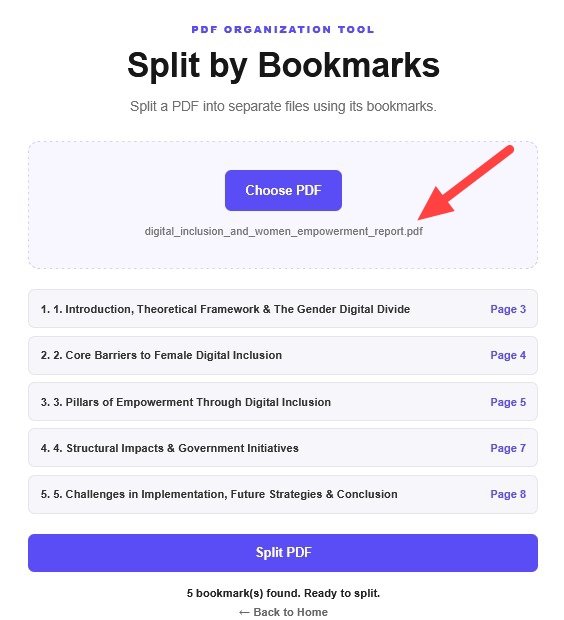
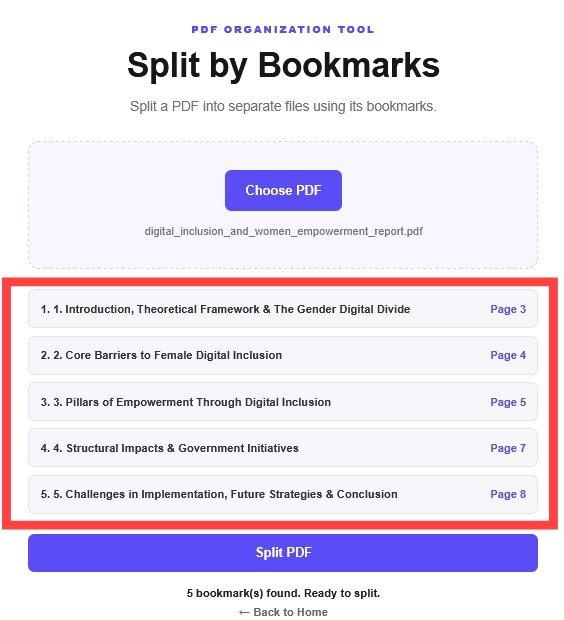
PDF bookmarks act like a navigation list for the sections inside a document. They often identify chapters, topics, headings, or important sections.
Before splitting the file, confirm that your PDF contains the bookmarks required by the tool. A PDF without suitable bookmarks may not produce the chapter-wise output you expect.
Follow the available options in the tool and click the Split PDF or corresponding action button to begin processing your document.
The tool uses the supported bookmark-splitting method to divide the document into smaller PDF files. Processing time depends on the document size and number of pages.
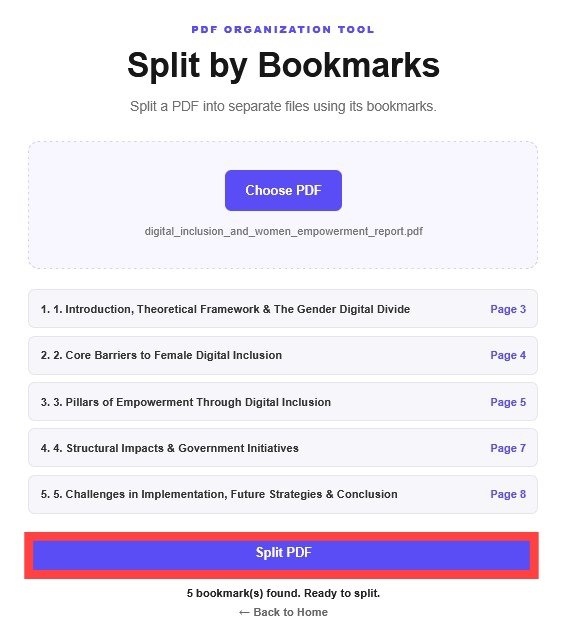
After processing finishes, use the download option provided by the tool to save your resulting PDF files. If the tool provides a ZIP archive, download and extract it to access the individual documents.
Open the resulting files and check that the pages are separated as expected. Keep the original PDF as a backup until you have verified your documents.
Large PDF documents can contain many chapters and sections. Splitting a bookmarked PDF helps you separate those parts into smaller documents when the bookmark structure supports it.
Bookmarks identify locations or sections inside a PDF. A compatible splitting tool can use those bookmarks to divide the document into separate files. The exact output depends on the PDF's bookmark structure and the tool's supported options.
This is an illustrative example. The actual number and boundaries of the output files depend on the bookmarks and the splitting options available.
Once your PDF is divided into separate files, you may want to perform additional tasks. Use Merge PDF to combine PDF documents into one file.
If you need to remove unnecessary pages from a document, try Delete PDF Pages.
To rearrange pages into a different order, use Organize PDF.
If your resulting files are too large, use Compress PDF to reduce their file size.
It is a PDF-splitting method that uses a document's bookmarks to separate supported sections into individual PDF files.
Yes, bookmark-based splitting generally requires a PDF with suitable bookmarks. The result depends on the tool's supported method and the structure of your document.
If the PDF has suitable chapter bookmarks and the tool supports splitting at those bookmarks, you can separate the chapters into individual files.
Bookmark-based splitting may not work as expected without suitable bookmarks. You can use our Split PDF tool if you need to separate pages using other supported splitting options.
Yes. Use our Merge PDF tool to combine multiple PDF files into a single document.
Open each downloaded file and verify its page content, section boundaries, and reading order. Keep the original document until you have checked the results.
Separate bookmarked sections of your PDF and manage your documents more easily with PDF Wizard Tools.
Back to Split by Bookmarks Tool