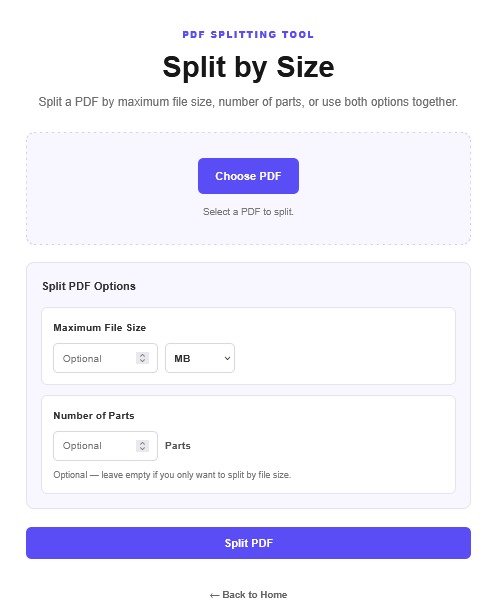
Split by Size

Split a PDF by maximum file size, number of parts, or use both options together.

Select a PDF to split.

Split PDF Options
Parts

Optional — leave empty if you only want to split by file size.
← Back to Home
PDF SPLITTING TOOL

How to Split a PDF by Size Online

Divide a large PDF into smaller files with PDF Wizard Tools. Prepare PDF documents for sharing, uploading, and storing using the size options supported by the tool.

Open Split by Size PDF Tool
01

Open the Split by Size PDF Tool

Open the Split by Size tool on PDF Wizard Tools. This tool helps divide a PDF into smaller files according to the splitting options available on the page.

It can be useful when you need to prepare large documents for file-size limits, sharing, uploading, or easier storage.

02

Upload Your PDF Document

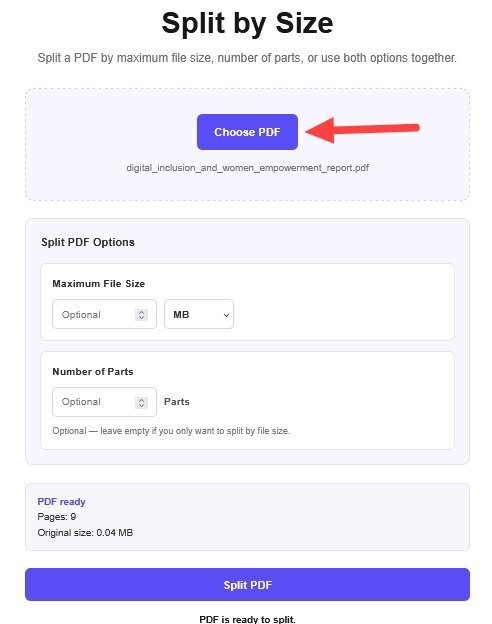
Click the file upload button and select the PDF document you want to split from your computer or mobile device. Wait for the document to load.

Check that you selected the correct file and keep a backup of your original PDF before processing it.

Choose PDF for Split by Size
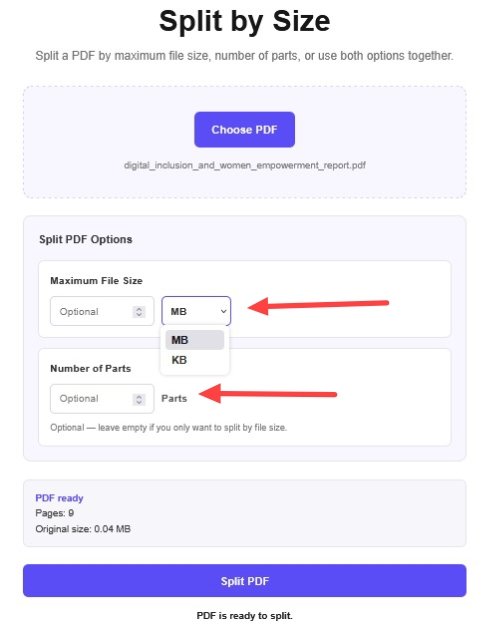
Choose Target File Size for PDF
03

Choose the Target File Size

Review the size settings available in the tool and enter your desired target size if this option is provided. Check the units before continuing.

The final size of each PDF may depend on page boundaries, document content, and the splitting method implemented in your tool.

04

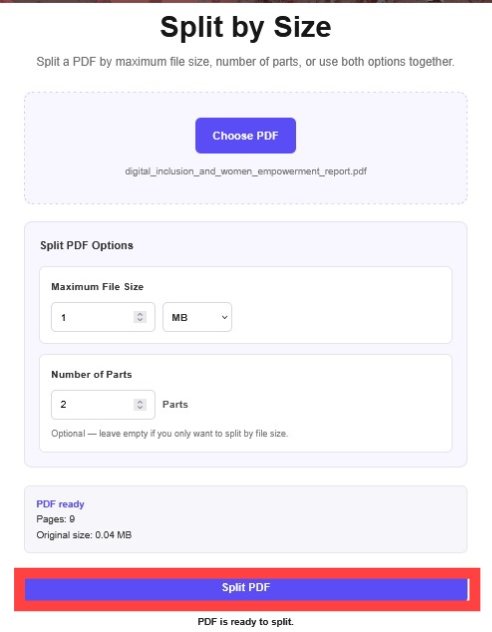
Start Splitting the PDF

Confirm your settings and click the split or process button provided by the tool to begin processing the document.

Wait until processing is complete. Do not close the page while the tool is working.

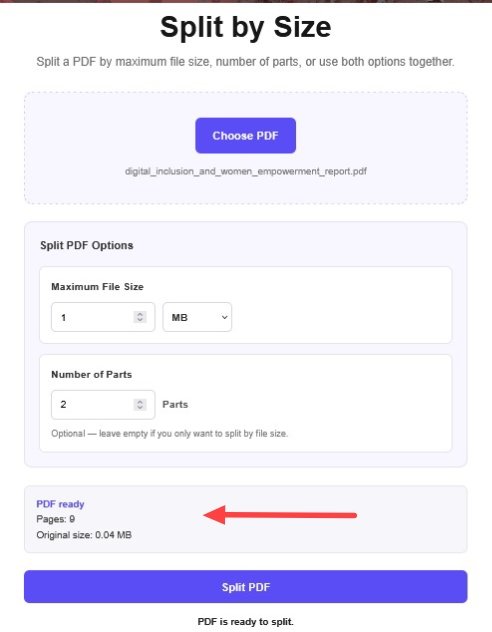
Check PDF Before Splitting by Size
Download Your Split PDF Files
05

Download and Check Your PDF Files

Download the resulting files using the download options provided by the tool. Depending on its implementation, multiple files may be offered separately or together.

Open the output files and verify their sizes and page contents before sharing or storing them.

Why Use a Split PDF by Size Tool?

Large PDF files can be difficult to upload or share when a service limits the size of each file. Splitting a PDF can help divide a document into smaller parts.

  • Prepare PDF documents for file-size limits.
  • Divide large documents into smaller files.
  • Make documents easier to share and transfer.
  • Organize lengthy PDF files into manageable parts.
  • Keep a backup of the original document.

Important: Splitting a PDF is not the same as compressing it. Splitting creates separate files, while compression attempts to reduce the amount of data.

How Does Splitting a PDF by Size Work?

A size-based PDF splitting tool divides a document according to its configured rules. The exact number of pages in each output file depends on the document and the tool's method.

Example: Preparing a Large PDF

Large PDF → Split by size → Smaller PDF files

This is a general illustration. Actual output sizes and page ranges depend on the options supported by your tool.

Tips Before Splitting a PDF

  • Confirm that you selected the correct PDF file.
  • Check the target size and units carefully.
  • Keep a backup of the original document.
  • Review every output file after downloading.
  • If your goal is to reduce PDF file size, try our Compress PDF tool.

What to Do After Splitting a PDF?

To combine separate PDF files into one document, use our Merge PDF tool.

To split a PDF using other available splitting options, visit our Split PDF tool.

To reduce the size of a PDF, try Compress PDF.

Frequently Asked Questions

What does Split PDF by Size mean?

It means dividing a PDF document into smaller files using the size-based splitting method supported by the tool.

Can I choose the target size?

You can choose a target size if your version of the tool provides this setting. Follow the options shown on the page.

Does splitting a PDF compress it?

No. Splitting separates a document into multiple files. Use Compress PDF if you want to reduce the file size.

Will splitting delete my original PDF?

Keep your original document as a backup until you have checked the generated files and confirmed the results.

Can I merge the resulting files again?

Yes. You can use our Merge PDF tool to combine PDF files again.

How do I reduce the size of a PDF?

Use our Compress PDF tool to attempt to reduce the file size.

Split Your PDF by Size Online

Divide large documents into smaller files and manage your PDFs more easily with PDF Wizard Tools.

Back to Split by Size Tool