PDF SPLITTING TOOL
Split by Text
Split a PDF into separate files whenever specific text is found on a page.
Select a PDF to split by text.
The page containing this text will start a new PDF section.
Split a PDF into separate files whenever specific text is found on a page.
Select a PDF to split by text.
The page containing this text will start a new PDF section.
Separate PDF documents using text-based splitting options supported by PDF Wizard Tools. Organize long documents into smaller sections and make important information easier to manage.
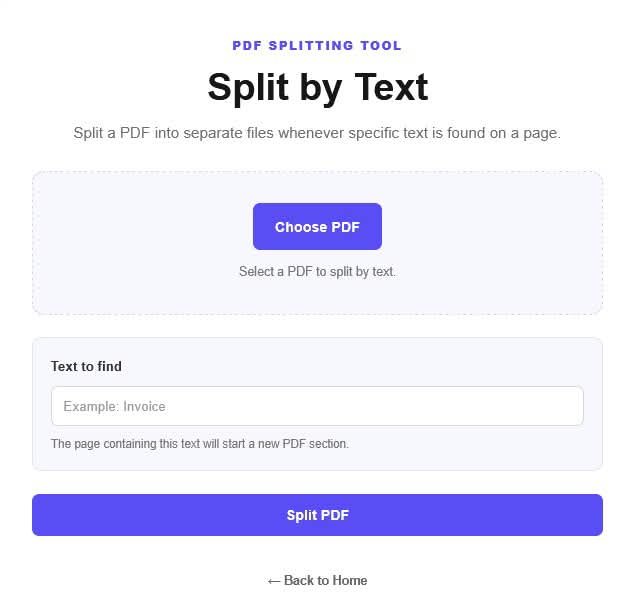
Open the Split by Text tool on PDF Wizard Tools. This tool is intended to divide documents using text-based rules supported by its available settings.
It may be useful for reports, invoices, records, study material, and other documents that contain recognizable text patterns or repeated headings.
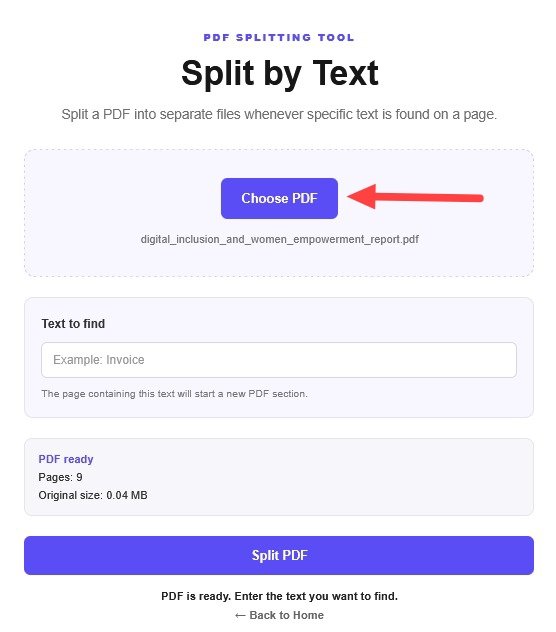
Click the file upload button and select the PDF document you want to split from your device. Wait for the file to load.
Check that you selected the correct document. Keep a copy of the original PDF before making changes.
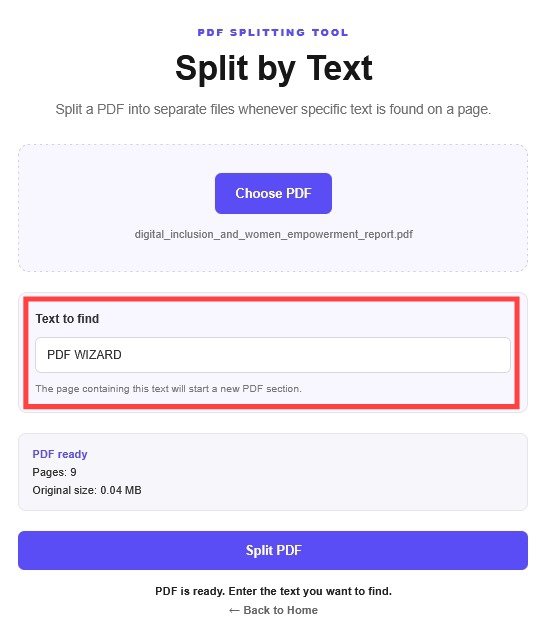
Enter the word, phrase, or text pattern required by the tool. Choose a pattern that clearly identifies where the document should be divided.
Review any matching options provided by the tool. The exact behavior depends on how your Split by Text feature is configured.
Check your selected text rule and click the split or process button provided by the tool.
Wait for processing to finish. If the tool displays a result or preview, review it before downloading the files.
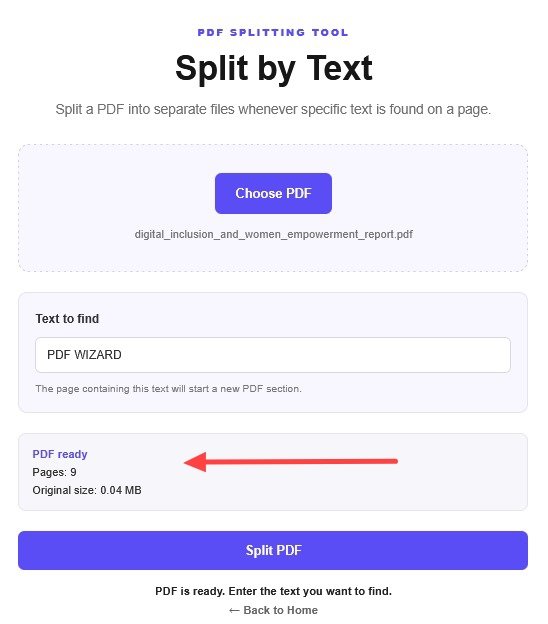
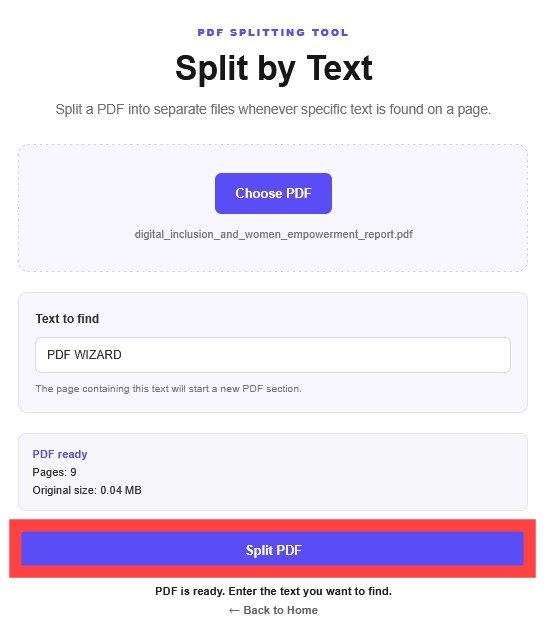
Download the generated PDF files using the options provided by the tool.
Open the output files and check that the pages have been divided as expected. Keep your original document until you have verified the results.
Text-based splitting can help organize documents that contain recognizable words, headings, or repeated labels, when those patterns are supported by the tool.
A text-based splitting tool uses the selected text rule to identify where a document should be divided. Its exact behavior depends on the matching options implemented in the tool.
This is a general illustration. The actual split points depend on the text rule and matching behavior supported by your tool.
Scanned PDFs may contain page images instead of selectable text. Text matching may require OCR if the document has no searchable text layer.
Combine separate output files with our Merge PDF tool.
Save selected pages separately with Extract PDF Pages.
Remove unwanted pages with Delete PDF Pages.
It means splitting a PDF using text-based rules supported by the tool.
This depends on the text-matching options available in your version of the tool.
Scanned pages may contain images instead of selectable text. OCR may be required if the tool relies on searchable text.
Keep your original file as a backup until you have checked the generated output files.
Yes. Use our Merge PDF tool to combine PDF files.
Visit our Split PDF tool and use the page-splitting options available there.
Organize your PDF documents into smaller sections with PDF Wizard Tools.
Back to Split by Text Tool