PDF SPLITTING TOOL
Split in Half
Split a PDF into two equal parts based on its page count.
Select a PDF to split into two parts.
PDF SPLITTING TOOL
Split a PDF into two equal parts based on its page count.
Select a PDF to split into two parts.
Divide a PDF document into two parts with PDF Wizard Tools. Split a long document into smaller sections to make it easier to manage, share, and review.
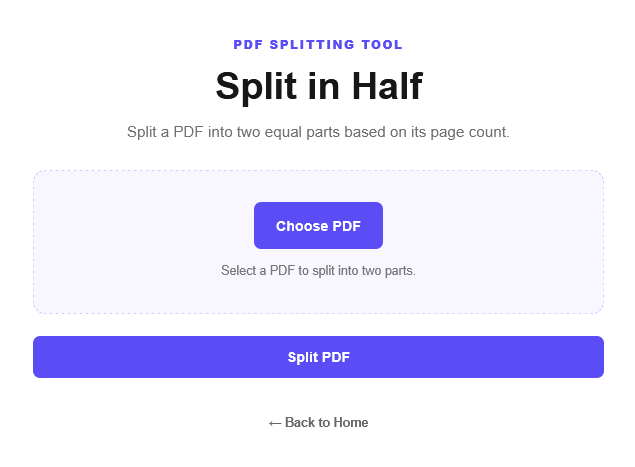
Open the Split in Half PDF tool on PDF Wizard Tools. This tool is designed to divide a PDF document into two parts according to the splitting method supported by your tool.
It can be useful for lengthy study notes, reports, assignments, scanned documents, and other multi-page PDFs that you want to separate into smaller files.
Click the Choose PDF or file upload button and select the document you want to split from your device. Wait for the file to load before continuing.
Make sure the selected PDF is the correct document. If it contains important information, keep a copy of the original file before processing it.
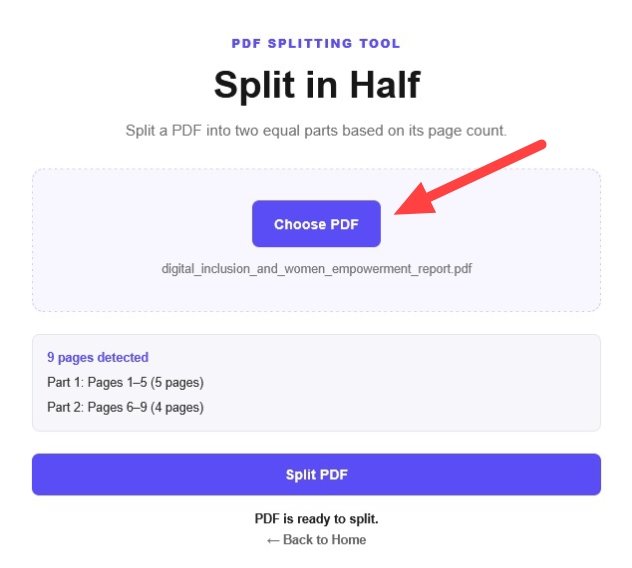
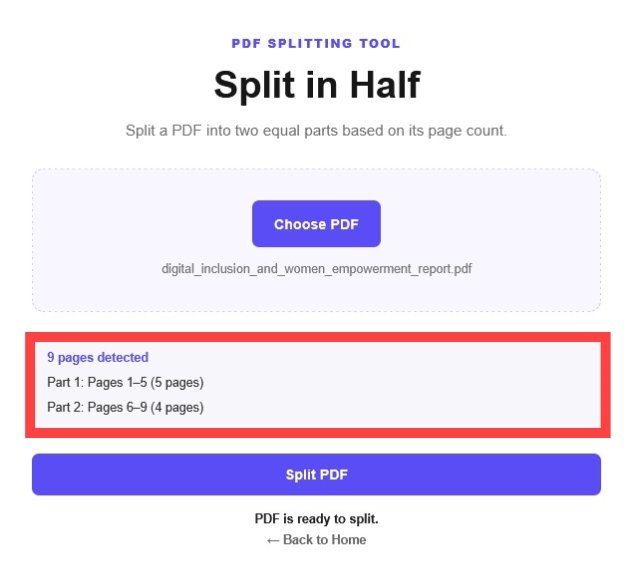
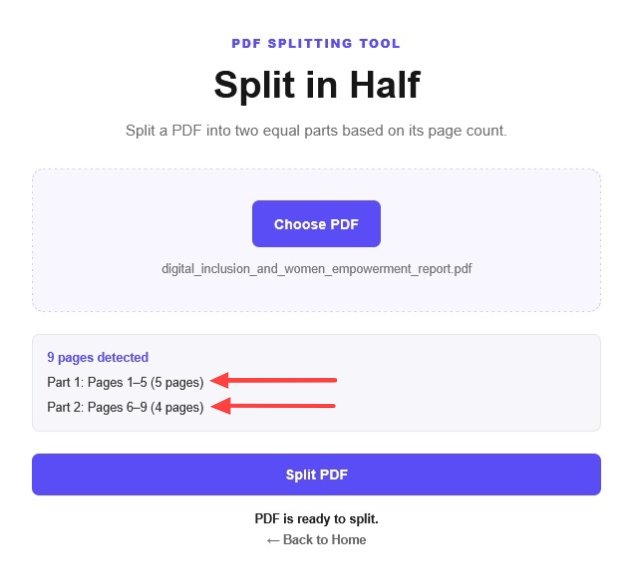
Before splitting the document, check its total number of pages and confirm how the tool divides the PDF into two parts. The page count helps you understand the expected result.
For example, a PDF containing 20 pages can be divided into two equal groups of 10 pages each. If the total number of pages is odd, the two parts may contain different numbers of pages.
Follow the available options in the tool and click the Split PDF or corresponding action button to begin processing the document.
The tool will divide the PDF according to its configured splitting method. Wait until processing finishes before downloading the resulting files.
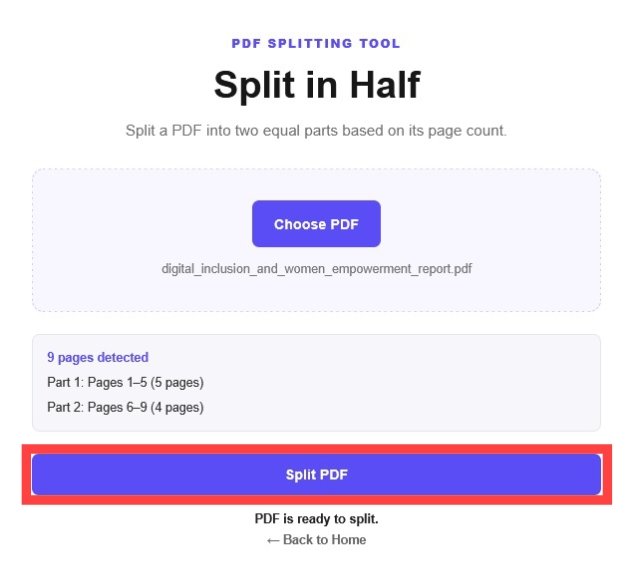
When processing is complete, use the download option provided by the tool to save the resulting PDF files. Depending on the implementation, the files may be available separately or together in a ZIP archive.
Open both files and check that the pages have been divided as expected. Your smaller PDF documents are now ready to review, share, or store.
Large PDF files can be inconvenient to manage or share. Splitting a document into two parts can make it easier to work with separate sections while keeping the original document available as a backup.
A PDF splitting tool divides a document according to its configured page-splitting method. With an even page count, an equal split can produce two files containing the same number of pages.
This is an example of an equal split. The actual page ranges depend on how your Split in Half tool is implemented.
If you want to combine the resulting files again, use our Merge PDF tool to join multiple PDF documents into one file.
To split a document using page ranges or other available splitting options, visit our Split PDF tool.
If you need to arrange pages in a different sequence, use Organize PDF.
You can also reduce the size of a resulting PDF with Compress PDF.
It means dividing one PDF document into two separate PDF files according to the splitting method supported by the tool.
Yes, an equal split of a 20-page PDF can produce two files containing 10 pages each, provided the tool supports this splitting method.
The two parts may contain different numbers of pages. The exact division depends on the tool's splitting rules.
The downloaded output is normally created as a separate result. Keep your original document as a backup until you have checked the resulting files.
Yes. Use our Merge PDF tool to combine the resulting PDF documents into one file.
Yes. After downloading the files, use our Compress PDF tool to reduce their file size if needed.
Divide a large PDF into two parts and manage your documents more easily with PDF Wizard Tools.
Back to Split in Half Tool