How to Resize a PDF Online
Adjust PDF page dimensions with PDF Wizard Tools. Prepare documents for different paper sizes, layouts, and printing requirements using the options supported by the tool.
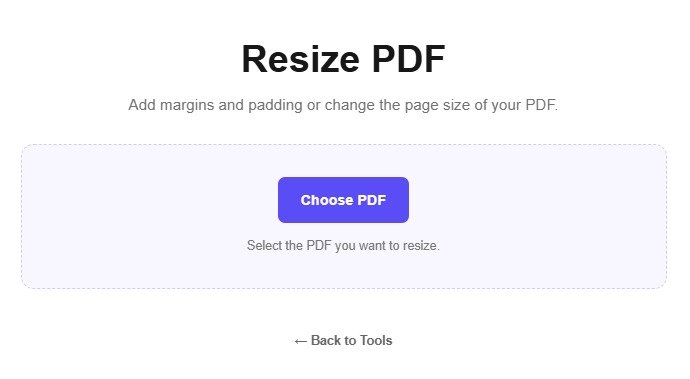
Open the Resize PDF Tool
Open the Resize PDF tool on PDF Wizard Tools. Use the available settings to change the dimensions of your PDF pages.
Resizing may be useful when preparing documents for printing or when a particular page size is required.
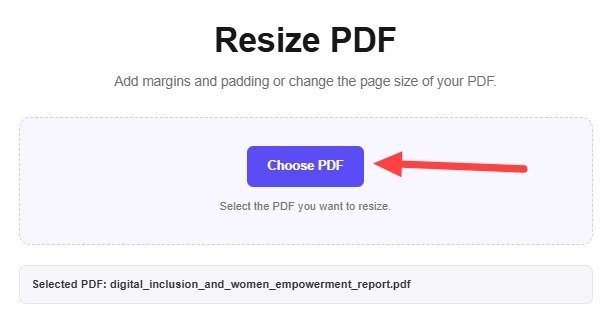
Upload Your PDF Document
Select the PDF document you want to resize and wait for it to load in the tool.
Check that you have selected the correct file and keep a backup of the original PDF.
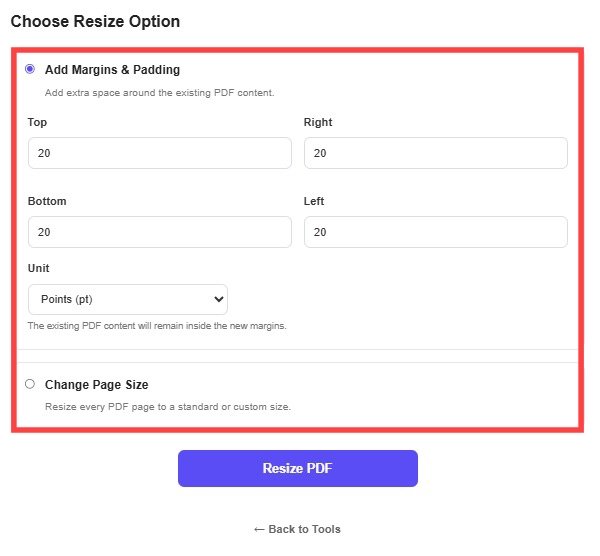
Choose the New Page Dimensions
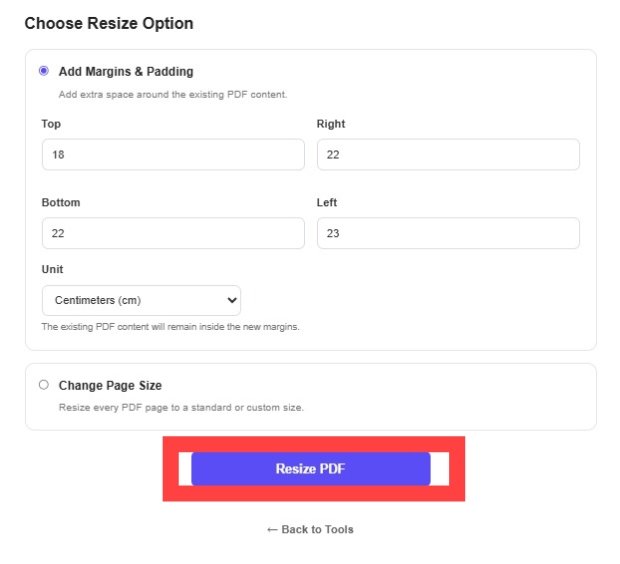
Select a supported paper size or enter custom dimensions if the tool provides that option.
Review the selected dimensions and check whether the document layout will fit your intended use.
Apply the New Page Size
Confirm your selected dimensions and click the resize or process button provided by the tool.
Wait for the updated PDF to be generated before downloading the file.
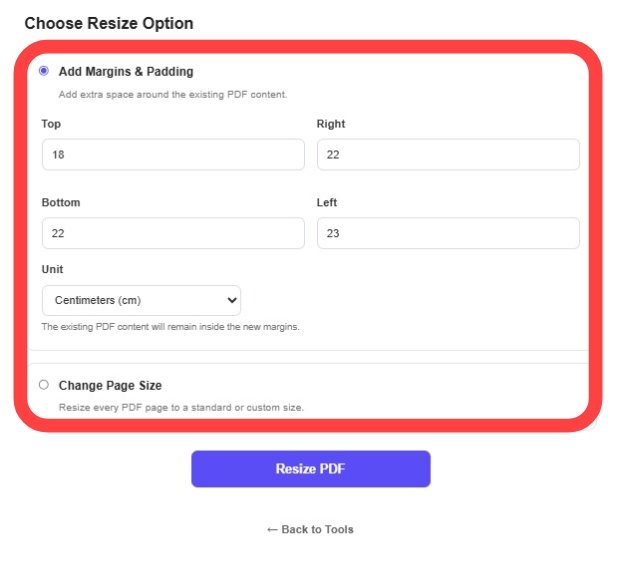
Download and Check Your PDF
Download the resized PDF using the available download option.
Open the result and verify the page dimensions, margins, and readability before printing or sharing it.
Why Resize a PDF?
Changing page dimensions can help prepare a document for a required paper format or make its layout more suitable for a particular use.
- Prepare documents for printing.
- Adjust page dimensions to a supported paper size.
- Standardize the page size of a document.
- Prepare PDFs for different document layouts.
- Review page dimensions before printing or sharing.
Important: Resizing page dimensions is different from reducing file size. Use Compress PDF for compression.
How Does Resizing a PDF Work?
The tool applies the selected page dimensions using its available resizing method. The final layout may depend on the original document and the chosen settings.
Example: Changing Page Dimensions
Check the final output to ensure that important text and images remain readable and correctly positioned.
Tips Before Resizing a PDF
- Choose the required paper size carefully.
- Check the page layout and margins.
- Keep a copy of the original PDF.
- Review the output before printing.
- To adjust visible page boundaries, use Crop PDF.
What to Do After Resizing a PDF?
Adjust visible page areas with Crop PDF.
Correct page orientation with Rotate PDF.
Reduce file size with Compress PDF.
Frequently Asked Questions
Can I resize a PDF for printing?
Select the required page size if it is supported by the tool, and review the layout before printing.
Does resizing reduce the PDF file size?
Not necessarily. Page dimensions and file compression are different operations. Use Compress PDF for compression.
Can I enter custom page dimensions?
Custom dimensions are available only if supported by your version of the Resize PDF tool.
Will the page layout change?
It can, depending on the resizing method and settings. Review the final document before using it.
Can I crop a PDF after resizing?
Yes. Use Crop PDF to adjust the visible page area if required.
Should I keep the original PDF?
Yes. Keeping the original file allows you to return to the original dimensions if needed.
Resize Your PDF Pages Online
Adjust your document's page dimensions with PDF Wizard Tools.
Back to Resize PDF Tool